Learn
Lesson 5: Stock or material?
On this page
Goal: give the stove cabinets' fronts a different color without creating a new stock, and learn the rule that decides when a change is a material and when it is a stock.
Time: ten minutes.
The customer wants the fronts of the stove cabinet and of the stove wall cabinet black: the two doors and the drawer front below the stove, and the two doors above it. Everything else stays as it is. The HDF fronts are not cut in this shop; they go out as a list to the same HDF factory, at the same price.
A stock decides three things about a panel: its price, the nesting run it lands in, and the row it sits under in the production report. A material decides only how the panel looks, but the production report and the part labels carry it, so a list that leaves the shop shows it. That gives a short rule. A different price is always a different stock. Same price, different color: if you nest those panels yourself, each color needs its own stock, because a nesting run never separates by material. If they go out as a list, keep one stock and change the material.
So this job is a material.
1. Create the material
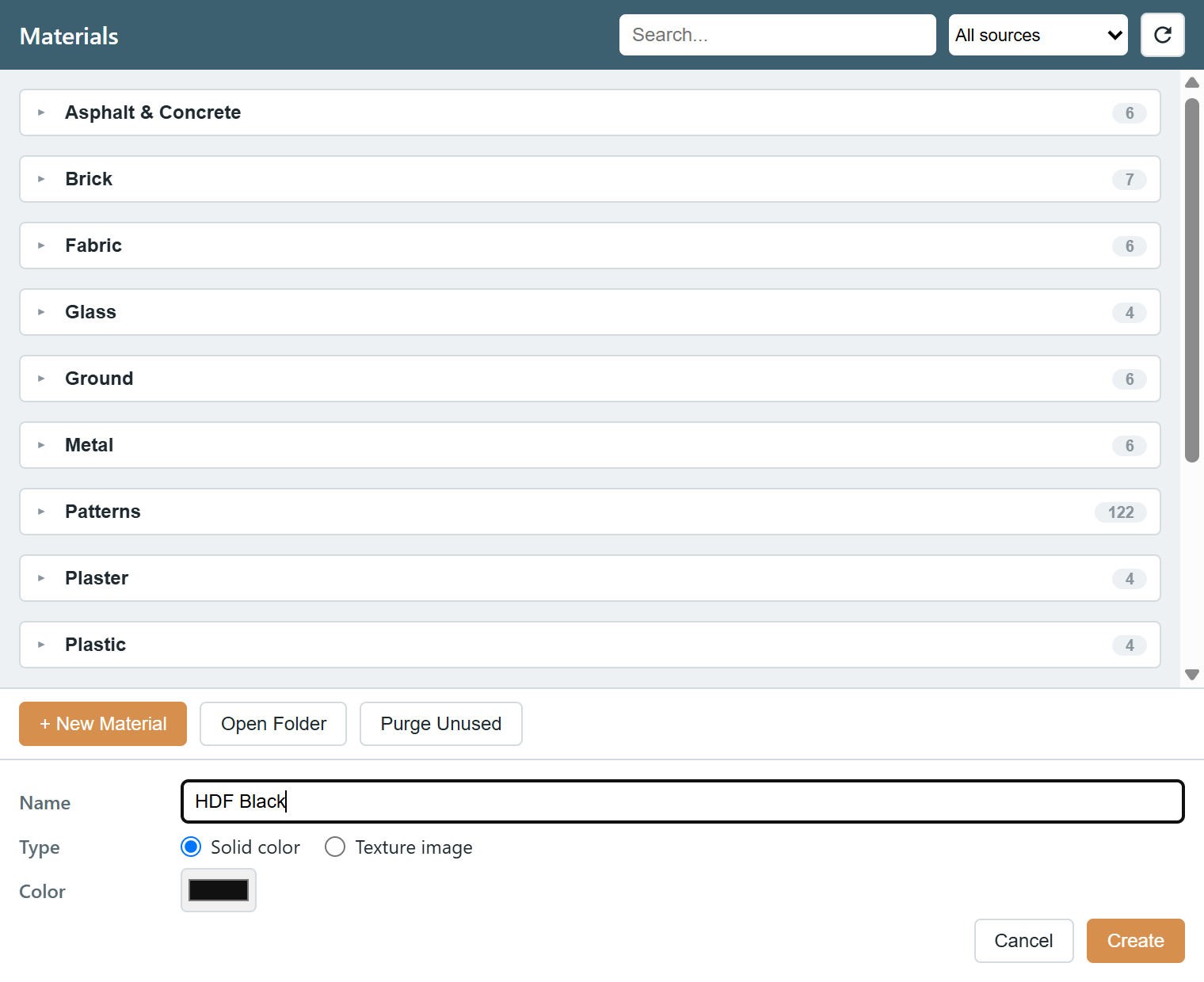
- Open Materials on the Cabybara toolbar. The window, titled Cabybara Materials, shows three sources in one grid: your own library, the materials already in this model, and SketchUp's built-in libraries.
- Press + New Material. Name it
HDF Black, keep the type Solid color, and pick a black. Create adds it to the model and saves it as an.skmfile in your library, so it is available in every project.
2. Paint the five fronts
Press Paint on the new card. The Materials Painter starts with HDF Black active, and its Material Picker window opens beside it. Hover a door of the stove cabinet: green means the click will paint it. Click its two doors and its drawer front, then the two doors of the stove wall cabinet above. Blue means a panel already carries the active material, Alt+Click samples a panel's material, and dragging paints every panel you cross.
The painter sets the panel's SketchUp material, exactly what the paint bucket would set. Its advantages are that it targets the panel inside the cabinet without opening the cabinet, offers all three sources in one picker, and has the eyedropper and a remove mode. Shift+Click paints every panel of the hovered type inside that one cabinet; a cabinet's two doors are two types, Door Left and Door Right, and its drawer front a third, so here five clicks are simpler.
3. What changed, and what did not
Open the Components Manager and, under Cabinet Types, tick Stove Ground Cabinet and Stove Wall Cabinet. The five fronts show HDF Black in the Material column, every door and front still shows HDF 18mm in the Stock column, and the Price column has not moved. Nesting would still put all the HDF in one run, and the production report will list the black fronts on their own lines, because its grouping considers the material. That is exactly what the factory needs, and Lesson 9 collects it.
Checkpoint: five black fronts in the model, and the Components Manager shows HDF Black on exactly five rows and HDF 18mm on every door and drawer front.
4. When it is a different stock
Had the customer picked a board with another price, or had you nested the fronts yourself, you would add a stock to the Stock Catalog (+ Add, a name, an id, thickness, grain and cost) and move the panels onto it. Two tools do that:
- Stock Painter, one cabinet at a time: pick the new stock in its Stock Picker, then click a panel or drag across several. Shift+Click applies it to every panel of the hovered type inside that cabinet, and holding Shift shows the stock map, with gray for unassigned.
- Components Manager, everything that matches a filter: tick the door types under Panel Types, choose Selection > Select All Listed, pick the stock in the bulk bar and press Apply. One undo step.
The pricing overlay and the quotation follow the new stock at once; Lesson 7 shows that live.
What can go wrong
- The painter's remove mode resets a panel to the plain default look, not to its stock's look. To get the stock look back, re-assign the stock with the Stock Painter.
- A face painted directly with the paint bucket masks the panel's material. Ctrl+Click in the painter paints and resets those faces.
- Painted looks live on the placed cabinet. A cabinet generated again from the dialog takes its materials from the dialog and the stock.
References: Materials, Materials Manager, Materials Painter, Stock Painter, Components Manager.
Next: Adopt a hand-drawn panel.