CABYBARA
DocsSign In
Work in progress. The documentation is still being written, and some screenshots are placeholders.
Contents
  • Overview

Learn

  • Learn Cabybara
    • Lesson 0: Install
    • Lesson 1: Activate this computer
    • Lesson 2: Set up your stocks
    • Lesson 3: Lay out the room
    • Lesson 4: Design the cabinets
    • Lesson 5: Stock or material?
    • Lesson 6: Adopt a hand-drawn panel
    • Lesson 7: Price it with the customer
    • Lesson 8: Nest the MDF and export
    • Lesson 9: The production report
    • What's next

Reference

  • Stock Management
    • Stock Catalog
    • Stock Painter
  • Cabinet Generation
    • Wall Cabinet (WC)
    • Ground Cabinet (GC)
    • Drawer + Shelves Cabinet (DSC)
    • Wardrobe Cabinet (WRC)
    • Tower Cabinet (TC)
    • TV Table (TVT)
    • Drawer Grid Cabinet (DGC)
    • Corner Cabinet (CC)
    • Blind Corner Cabinet (BCC)
    • Chamfer Cabinet (CWC)
    • Shelves Wall Cabinet (SHC)
    • Shelves Corner Cabinet (SCC)
    • Stove Wall Cabinet (SWC)
    • Stove Ground Cabinet (SGC)
  • Kitchen Layout
  • Create Panel
  • Decor Sculptor
  • Materials
    • Materials Manager
    • Materials Painter
  • Panel Tools
    • Grain Painter
    • Face Painter
    • Panel Notes
    • Face Engraver
  • Pricing
    • Pricing Overlay
    • Customer Pricing
  • Nesting
    • Nesting Settings
    • Manual Nesting Editor
    • DXF Export and Sheet Printing
  • Label Printer
  • Production Report
  • Components Manager
  • Settings
  • Licensing
  • Overview

Learn

  • Learn Cabybara
    • Lesson 0: Install
    • Lesson 1: Activate this computer
    • Lesson 2: Set up your stocks
    • Lesson 3: Lay out the room
    • Lesson 4: Design the cabinets
    • Lesson 5: Stock or material?
    • Lesson 6: Adopt a hand-drawn panel
    • Lesson 7: Price it with the customer
    • Lesson 8: Nest the MDF and export
    • Lesson 9: The production report
    • What's next

Reference

  • Stock Management
    • Stock Catalog
    • Stock Painter
  • Cabinet Generation
    • Wall Cabinet (WC)
    • Ground Cabinet (GC)
    • Drawer + Shelves Cabinet (DSC)
    • Wardrobe Cabinet (WRC)
    • Tower Cabinet (TC)
    • TV Table (TVT)
    • Drawer Grid Cabinet (DGC)
    • Corner Cabinet (CC)
    • Blind Corner Cabinet (BCC)
    • Chamfer Cabinet (CWC)
    • Shelves Wall Cabinet (SHC)
    • Shelves Corner Cabinet (SCC)
    • Stove Wall Cabinet (SWC)
    • Stove Ground Cabinet (SGC)
  • Kitchen Layout
  • Create Panel
  • Decor Sculptor
  • Materials
    • Materials Manager
    • Materials Painter
  • Panel Tools
    • Grain Painter
    • Face Painter
    • Panel Notes
    • Face Engraver
  • Pricing
    • Pricing Overlay
    • Customer Pricing
  • Nesting
    • Nesting Settings
    • Manual Nesting Editor
    • DXF Export and Sheet Printing
  • Label Printer
  • Production Report
  • Components Manager
  • Settings
  • Licensing

Learn

Lesson 1: Activate this computer

On this page
  1. 1. Meet the license window
  2. 2. Start the pairing
  3. 3. Approve in the browser
  4. 4. Back in SketchUp
  5. 5. Unpairing
  6. What can go wrong

Goal: pair this computer to an account with an active subscription and a free device slot. Until then, Cabybara's tools will not open.

Time: five minutes, once per computer.

There is no license key to type. You start the pairing in SketchUp and approve it in your browser.

1. Meet the license window

Press Create Cabinet on the Cabybara toolbar. Instead of the cabinet dialog you get the Cabybara License window, with Status Not activated. Every tool behaves like this until the computer is paired; only Settings and the Stock Catalog stay open.
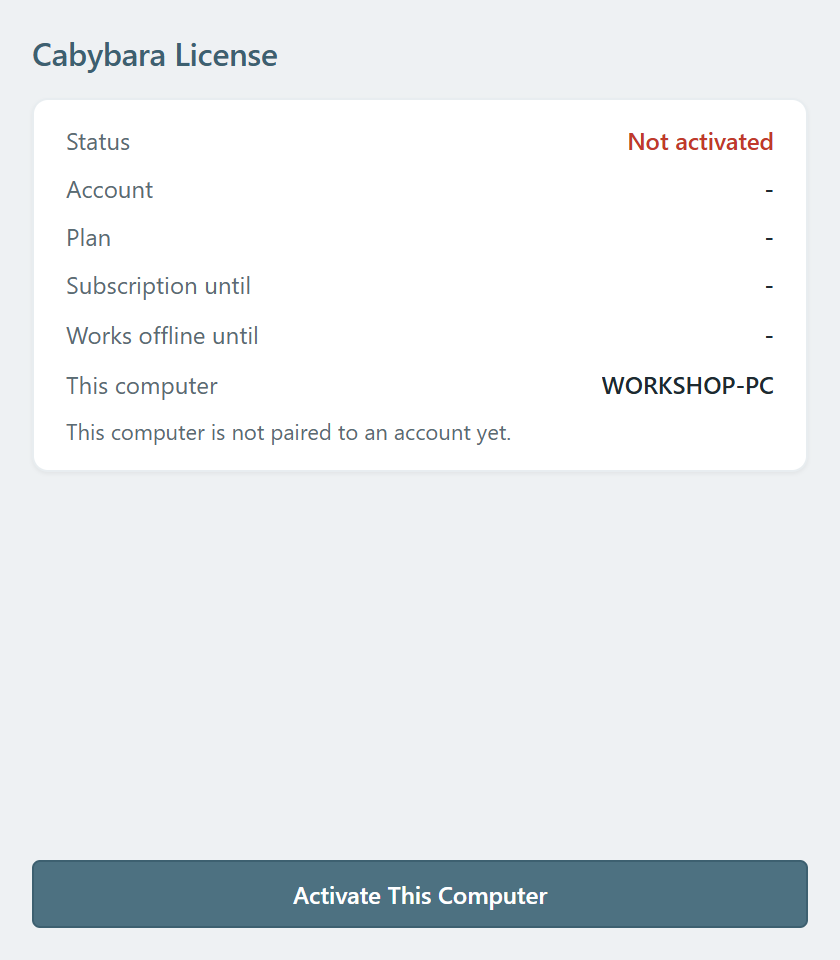
The Cabybara License window before activation, with Status Not activated

2. Start the pairing

  1. Press Activate This Computer. The window shows an 8-character code with a Copy button, a QR code, and the button Open Browser to Approve.
  2. Press Open Browser to Approve. Your browser opens the device activation page on the Cabybara website with the code already filled in. Scanning the QR code with your phone opens the same page on the phone. The Copy button is for when you open the site yourself.
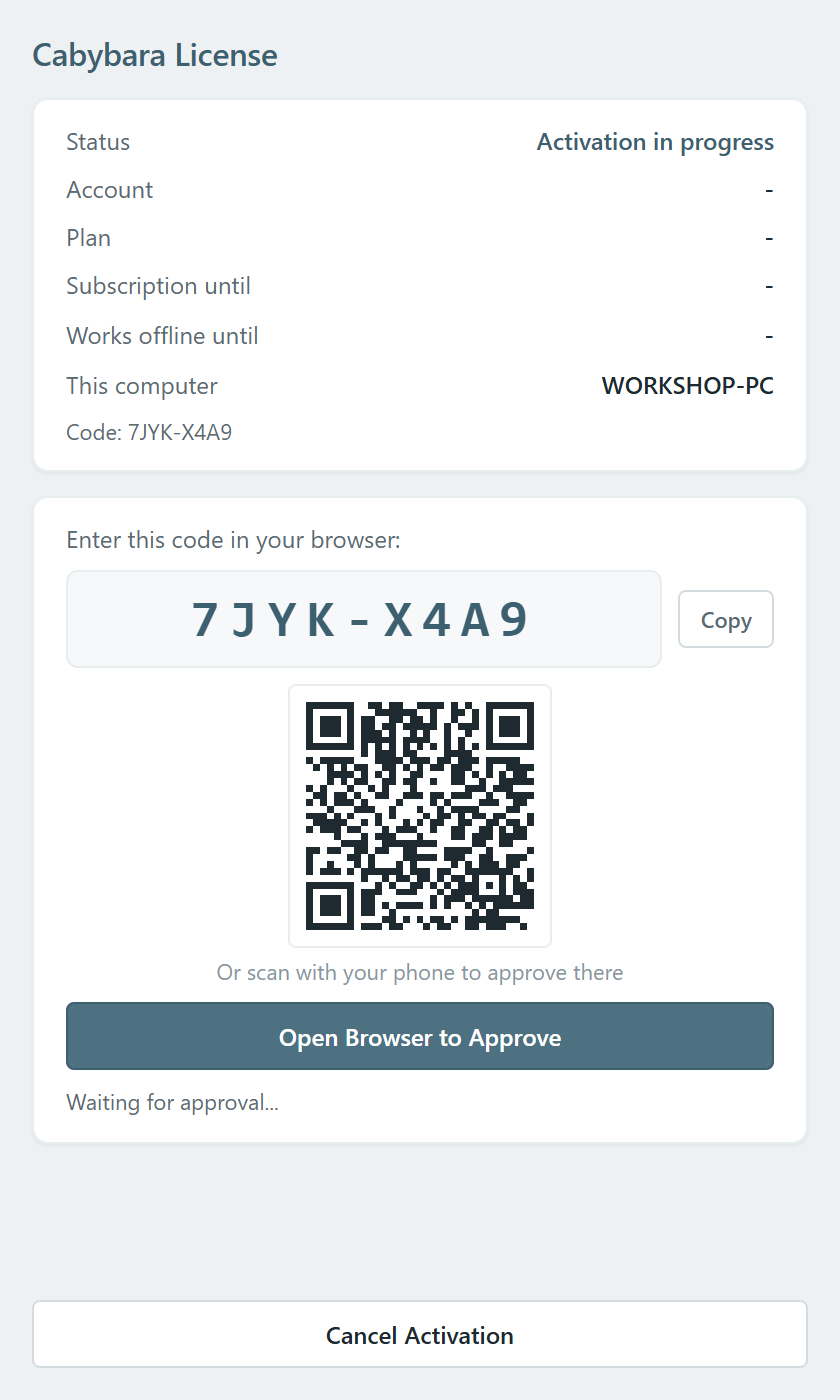
The license window showing the code, the QR code and Open Browser to Approve

3. Approve in the browser

Sign in if you are not signed in already. The page names the account the device will be added to, shows this computer as a pending request, and offers Approve and Reject. Approve pairs the computer to the signed-in account and takes one of its device slots.
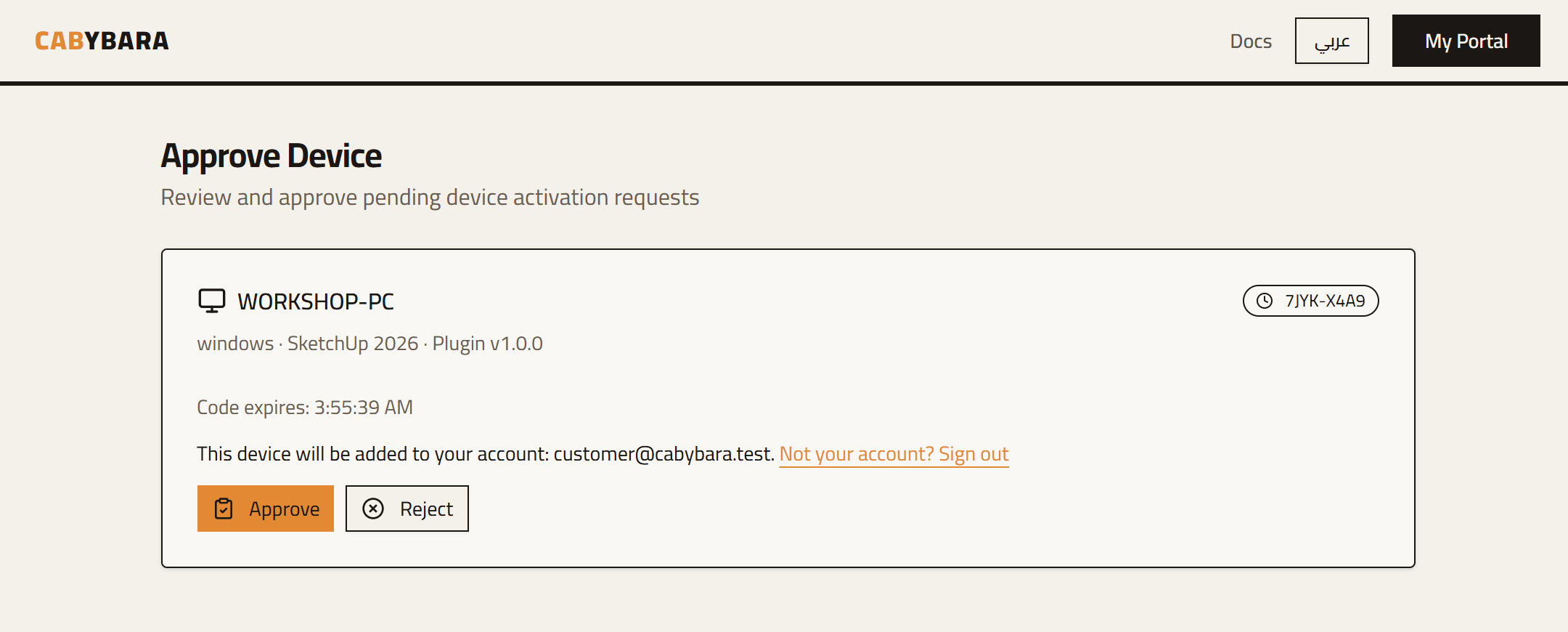
The Approve Device page with the pending request

Because approval happens in the browser, an owner can approve a worker's computer from their own phone, and revoke it later, without the account's password ever being typed on that machine.

4. Back in SketchUp

The window checks every few seconds, so nothing to press: "Waiting for approval..." turns into Licensed, with the Account, the Plan, the computer's name and two dates. Subscription until is the date your account is paid through. Works offline until is how long this computer can run before it next needs to check in; it moves forward on its own at every renewal. Accounts set to check in at every launch show "Checks in at every launch" there instead.
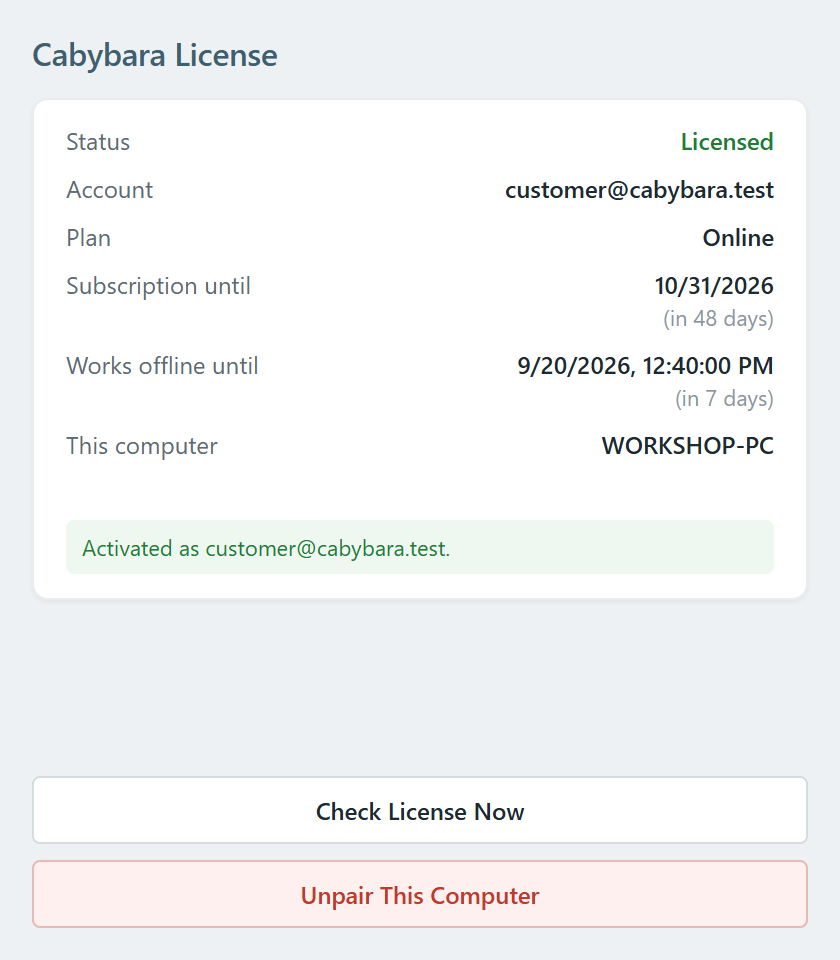
The license window after approval, with Status Licensed

Checkpoint: Status says Licensed, and pressing Create Cabinet now opens the cabinet dialog.

5. Unpairing

To move the license to another computer, open Settings from the toolbar, go to the About tab and press Manage License.... It is the same window, now offering Check License Now and Unpair This Computer. Unpairing frees the slot and needs a connection.
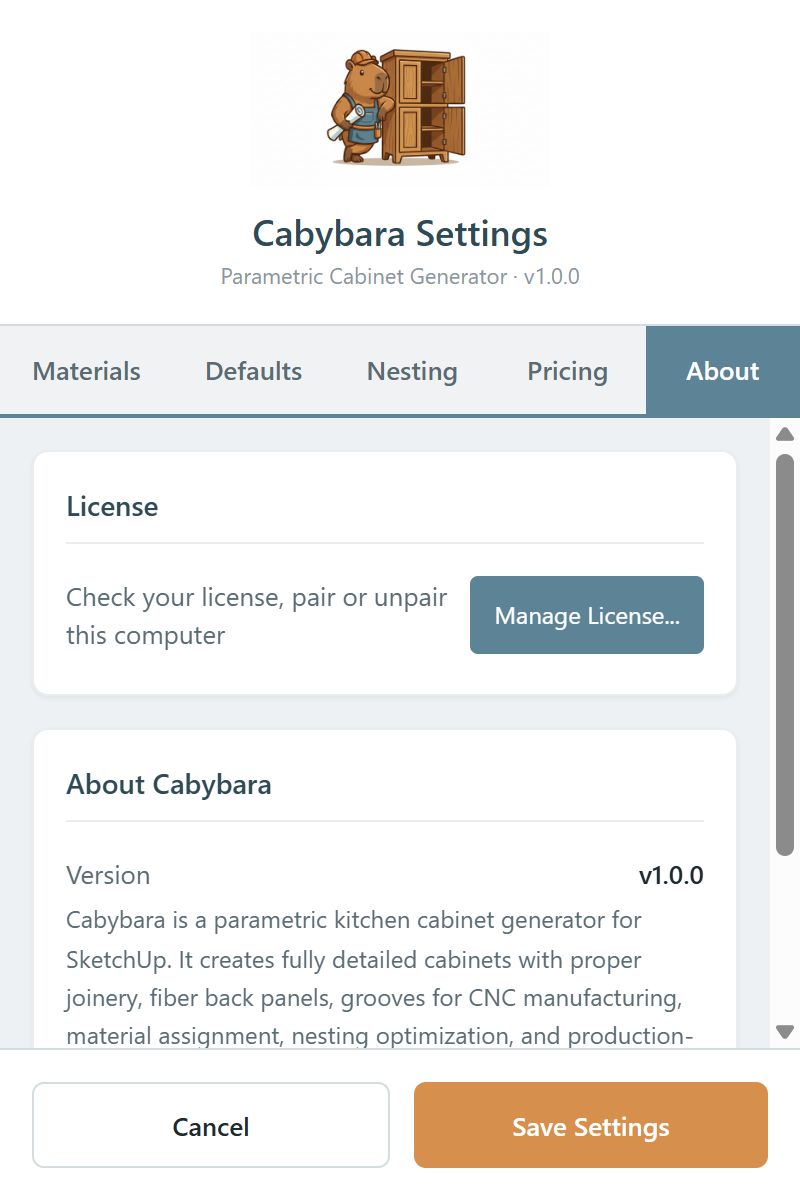
The Settings window, About tab, with the Manage License button

A computer you no longer have can be removed from the website instead: Revoke Device on your account's device list. That computer drops back to Not activated.

What can go wrong

  • Every slot is taken: the approval page says so and offers to replace one of your paired devices with this one. Or free a slot first by unpairing or revoking a machine you no longer use.
  • The code expires after fifteen minutes. The window says "Activation window expired. Start again."; press Activate This Computer for a fresh one.
  • Closing the window only pauses the attempt. Reopen it from Extensions > Cabybara > License... and the same code carries on; Cancel Activation abandons it.
  • Working offline and every status the window can show are described in Licensing.

Next: Set up your stocks.

PreviousLesson 0: InstallNextLesson 2: Set up your stocks

On this page

  1. 1. Meet the license window
  2. 2. Start the pairing
  3. 3. Approve in the browser
  4. 4. Back in SketchUp
  5. 5. Unpairing
  6. What can go wrong
CABYBARA

From cabinet design to DXF cut files, inside SketchUp.

Privacy PolicyTerms of ServiceSign In
© 2026 Cabybara. All rights reserved.Built with precision