Learn
Lesson 4: Design the cabinets
On this page
Goal: build the kitchen's nine cabinets from one dialog, touching only the few settings each one needs, and place each with a single click.
Time: fifteen minutes.
Every cabinet type comes from Create Cabinet on the Cabybara toolbar. The sidebar lists the types; the rest of the dialog holds the parameters that shape the chosen one: dimensions, back panel, shelves, doors, drawers, legs, handles, stocks and more. A 3D preview follows every change. Its doors are drawn see-through so you can look inside; Solid Doors in the preview toggles that. This lesson touches only the settings each cabinet needs; the reference has every field.
Placement works the same way every time. After Ctrl+Enter a dashed box the size of the cabinet follows the cursor, an orange arrow marks its front, the arrow keys rotate it in 90 degree steps, and one click places it, named automatically and lifted onto its legs. Copying a cabinet later with Move and Ctrl gives the copy its own name and definition, so editing one never changes the other.
1. The corner cabinet
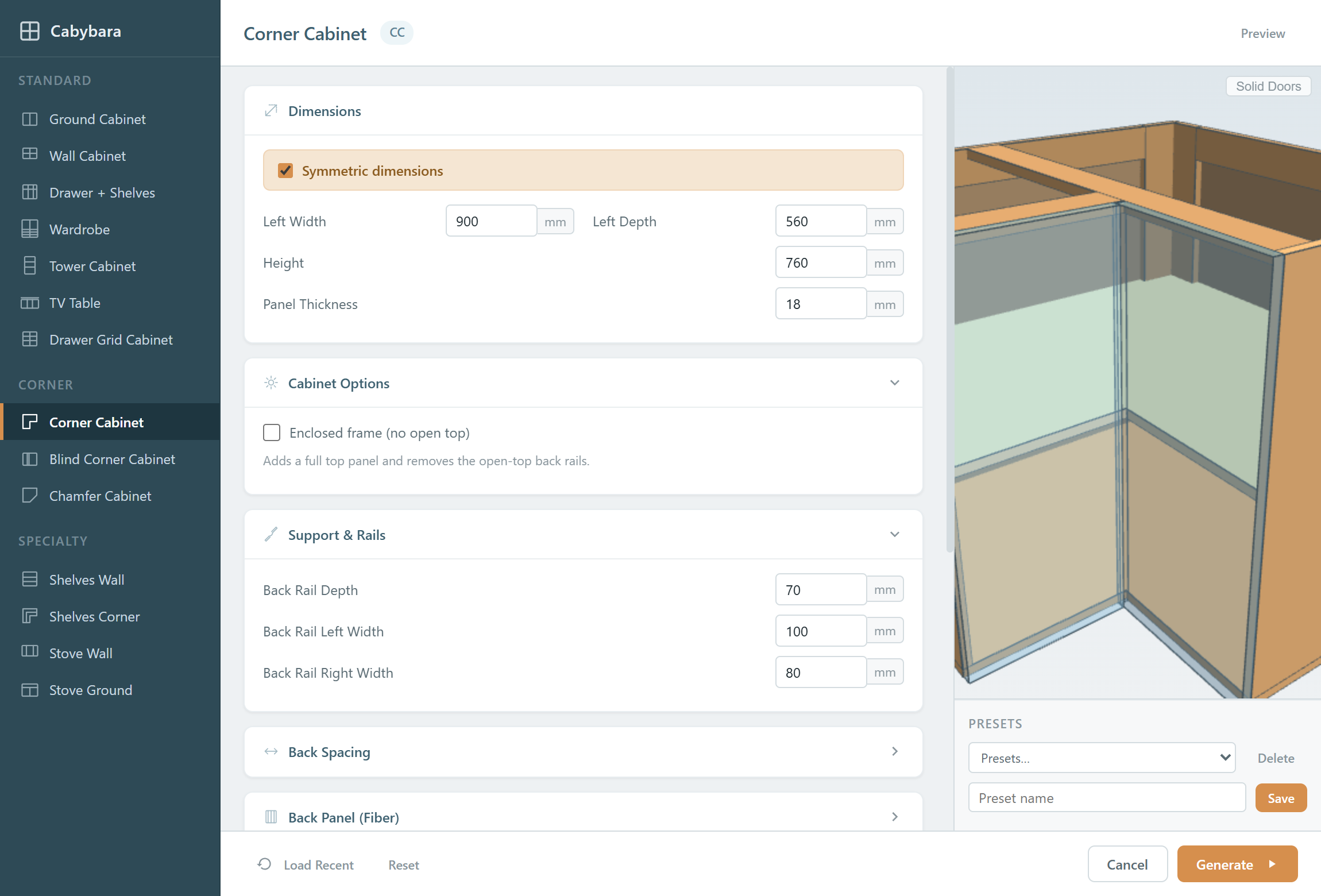
Three types suit a ground corner: Corner Cabinet (CC), the L shape; Blind Corner Cabinet (BCC), whose fixed face panel hides behind the neighboring run; and Chamfer Cabinet (CWC), with a diagonal door. Pick Corner Cabinet and keep every default: two 900 wings, 560 deep, 760 high, one door per wing, Steel Leg 10cm. Press Ctrl+Enter, rotate with the arrow keys until the wings hug the back and side walls, and click into the corner.
The 100 mm legs put the body between the Ground Cabinet Start line at 100 and 860 mm, leaving exactly the 40 mm of the Marble 40mm stock to the Marble Top line at 900. Every floor cabinet in this lesson lands the same way.
2. The sink cabinet
Pick Ground Cabinet (GC) and, under Cabinet Options, set Cabinet
Type to Sink. The Shelves and Back Panel sections disappear: a
sink base has neither. Set Width to 900.
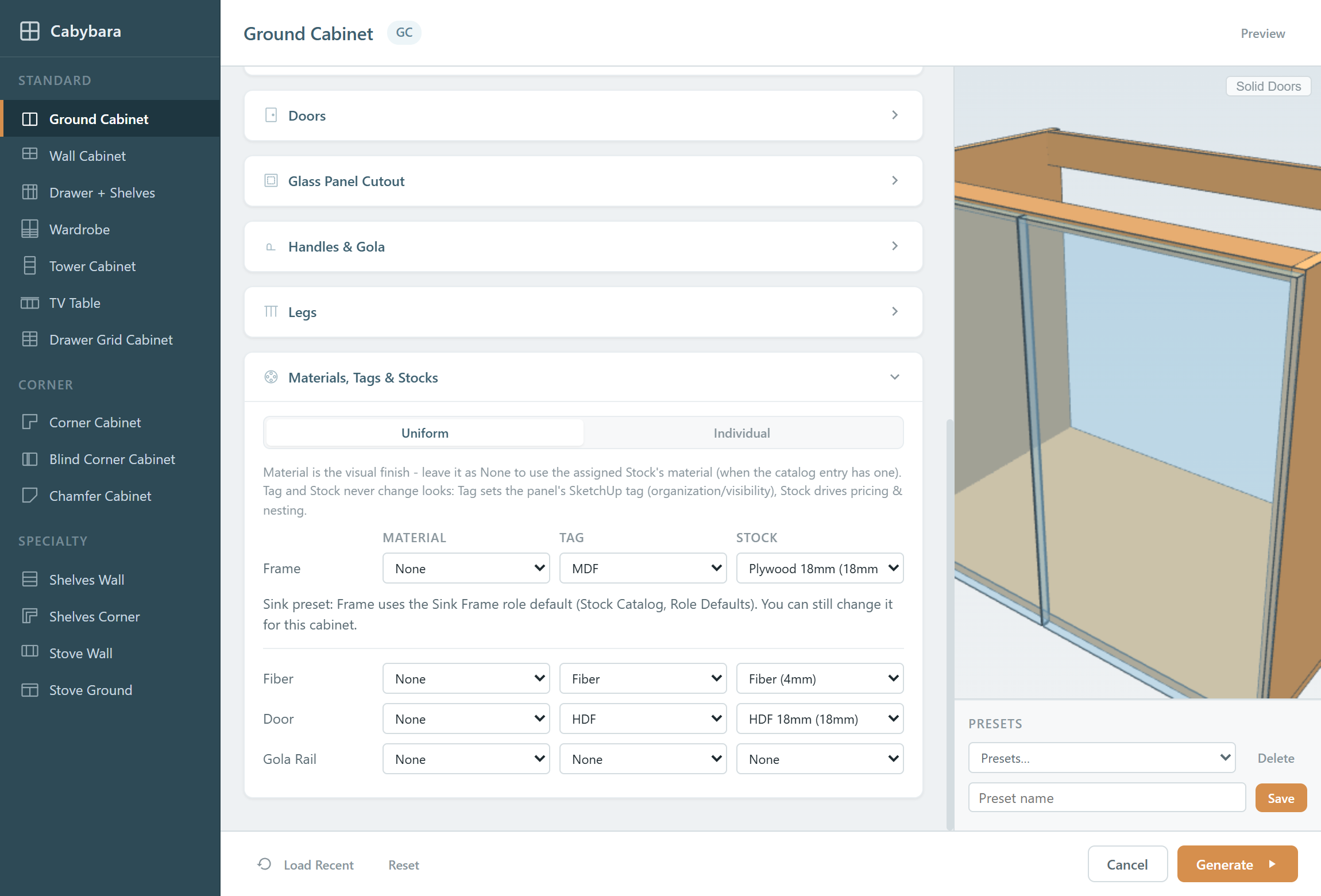
Scroll to Materials, Tags & Stocks. The Frame row has switched from MDF 18mm, the role default from Lesson 2, to Plywood 18mm on its own: the Sink preset applies the Sink Frame role default from Lesson 2, since plywood is the usual choice for a frame that lives under a sink, and a hint under the row says so. This row is also where you would pick anything else for one cabinet, and it is one of several ways to give panels a stock. The stock a cabinet is generated with is what nesting, pricing and the production report read later, so it pays to get it right here.
Ctrl+Enter, then place it on the side wall beside the corner cabinet's wing. Its center lands on the sink marker at 1350.
3. A utility cabinet
The narrow cabinet beside the sink holds cleaning supplies, with one
door and no shelf. Ground Cabinet again, Cabinet Type back to Standard,
Width 200. Under Shelves untick Add shelves; under Doors set
Number of Doors to 1. The preview follows each change. Generate
and place it beside the sink cabinet. That completes the side wall.
4. A drawer cabinet with graded drawers
Ground Cabinet, Cabinet Type: Drawers, Width 700. By default
the three drawers share the height equally. Make them small, medium and
large instead:
- Under Doors tick Custom door heights. One field per drawer front
appears. Enter
200for the first and250for the second, and leave the third blank: a blank field takes whatever height remains. - A drawer's front and its box are independent. Under Drawers tick
Custom drawer sizes and set the box heights (H) to
150,200and250, keeping the 450 depth. Each box sits behind a front a little taller than itself.
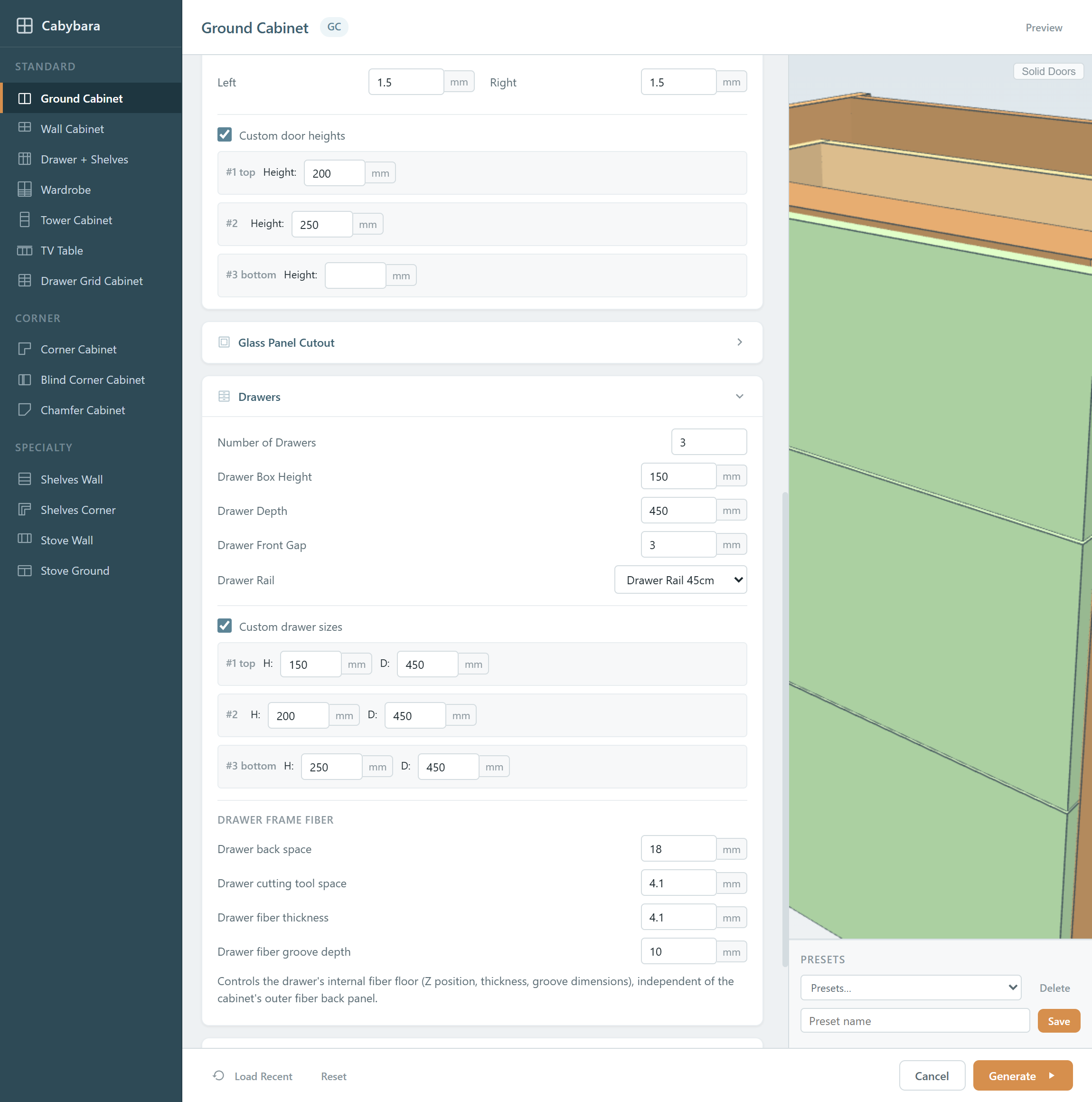
Generate and place it on the back wall beside the corner cabinet's other wing.
5. The stove cabinet
A plain ground cabinet would do, but Stove Ground Cabinet (SGC) is made for the spot: a drawer band across the top and two doors below. Its defaults, including the 900 width, are right. Generate and place it beside the drawer cabinet, centered on the stove marker.
6. A tower cabinet
Pick Tower Cabinet (TC): a tall cabinet for built-in appliances,
stacked as a bottom compartment, an oven space, a microwave space and a
top compartment. Keep the 600 width and set Height to 2100; on
its legs the top reaches the 2200 ceiling.
In Appliance Spaces keep the defaults, and read the Height allocation line: you set the bottom compartment, oven and microwave heights, and whatever remains goes to the top compartment. Under Shelves tick Bottom compartment shelves and Top compartment shelves, one shelf each.
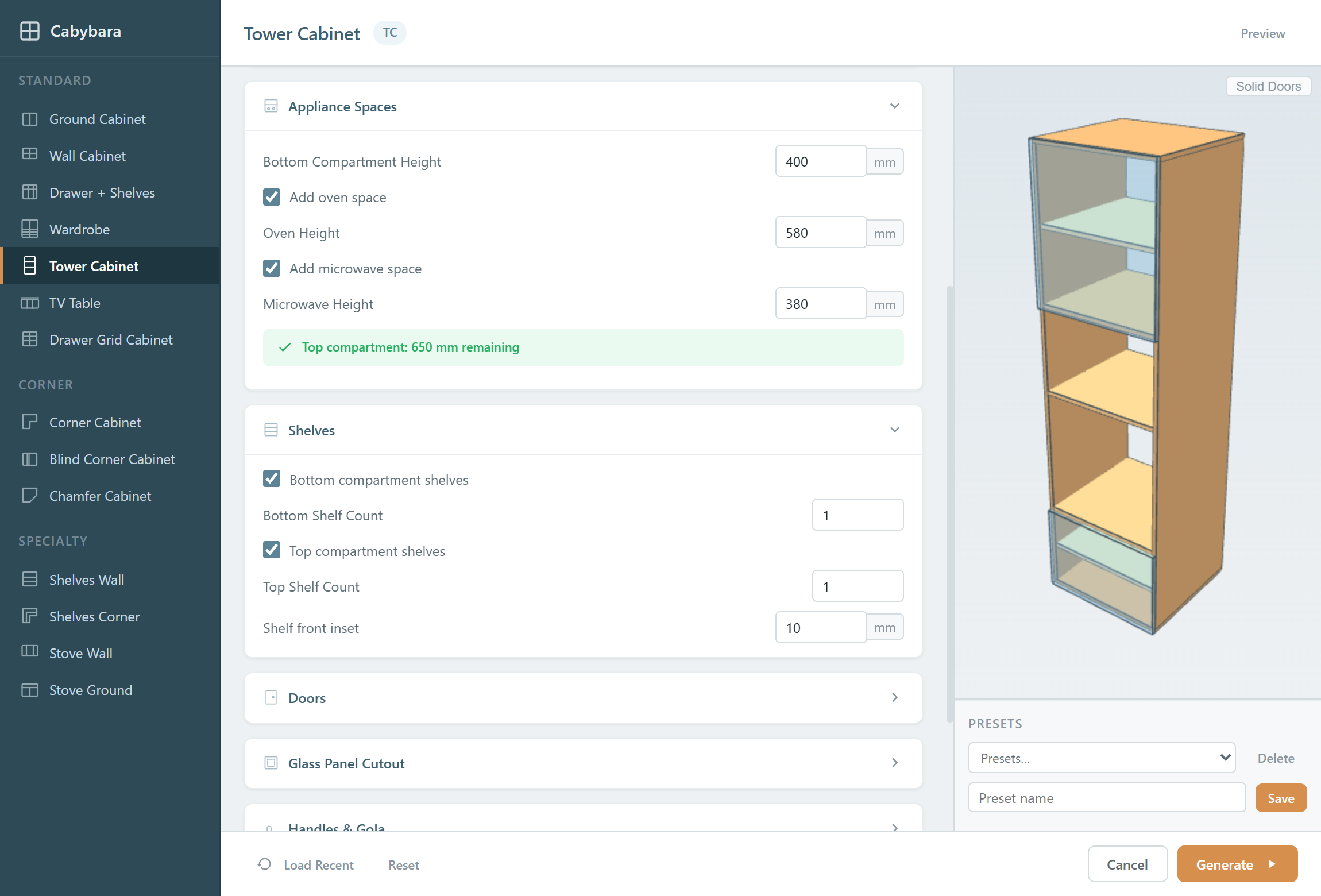
Generate and place it beside the stove cabinet. It fills the back wall exactly: 900 + 700 + 900 + 600 = 3100.
7. The wall cabinets
The Wall Cabinet Start and End guides at 1500 and 2200 make the fitting height 700. This lesson covers the back wall only.
- Stove Wall Cabinet (SWC) above the stove cabinet: three
compartments, the two narrow side ones with shelves and the wide
center left open for the hood duct. Set Width to
882and Height to650: the 18 mm left beside the tower takes a side panel you will draw in Lesson 6, and the hood gets 50 mm more clearance. Snap its top to the 2200 line, against the drawer cabinet's wall cabinet. - Wall Cabinet (WC),
700wide, above the drawer cabinet, snapped to the 1500 line. - Wall Cabinet (WC),
900wide, above the corner cabinet's back wing, the same way. A wall cabinet does not turn the corner; it simply sits over one wing.
Checkpoint: nine cabinets, each named with its type badge and a number. Hide the Walls tag and orbit: the floor cabinet bodies start at 100, the wall cabinets and the tower top out at 2200, and the sink cabinet is centered on its marker.
About the back panel
Every carcass got a fiber back: a 4.1 mm sheet seated in 10 mm grooves, positioned by the Back Spacing section (Back Space 18 plus Cutting Tool Space 4.1). The defaults suit grooved CNC construction; those sections are where you change it, and wall cabinets can also skip the grooves for a back that overlaps the carcass instead.
What can go wrong
- A validation message above the footer blocks Generate until you fix the value: custom heights that do not fit the cabinet, a tower whose Height allocation turns red because the spaces exceed the height, or too many shelves for a compartment.
- Escape cancels placement without generating anything. Load Recent brings back the values from your last Generate of that type, so nothing you typed is lost.
- Drawer Rail set to None still generates, but no rails are placed or priced, and the drawer boxes stay narrowed by the fixed 98 mm rail allowance.
- A cabinet placed in the wrong spot is ordinary SketchUp geometry: move it with the Move tool.
The full field list for every type is in Cabinet Generation.
Next: Stock or material?.