Learn
Lesson 2: Set up your stocks
Goal: meet the Stock Catalog: the stocks Cabybara ships with, what they cost, and how to make them yours.
Time: five minutes, once.
1. Meet the default stocks
Pricing, nesting and the production report all read the Stock Catalog, which is why it comes before the first cabinet. Open it from the Cabybara toolbar or menu (Stock Catalog).
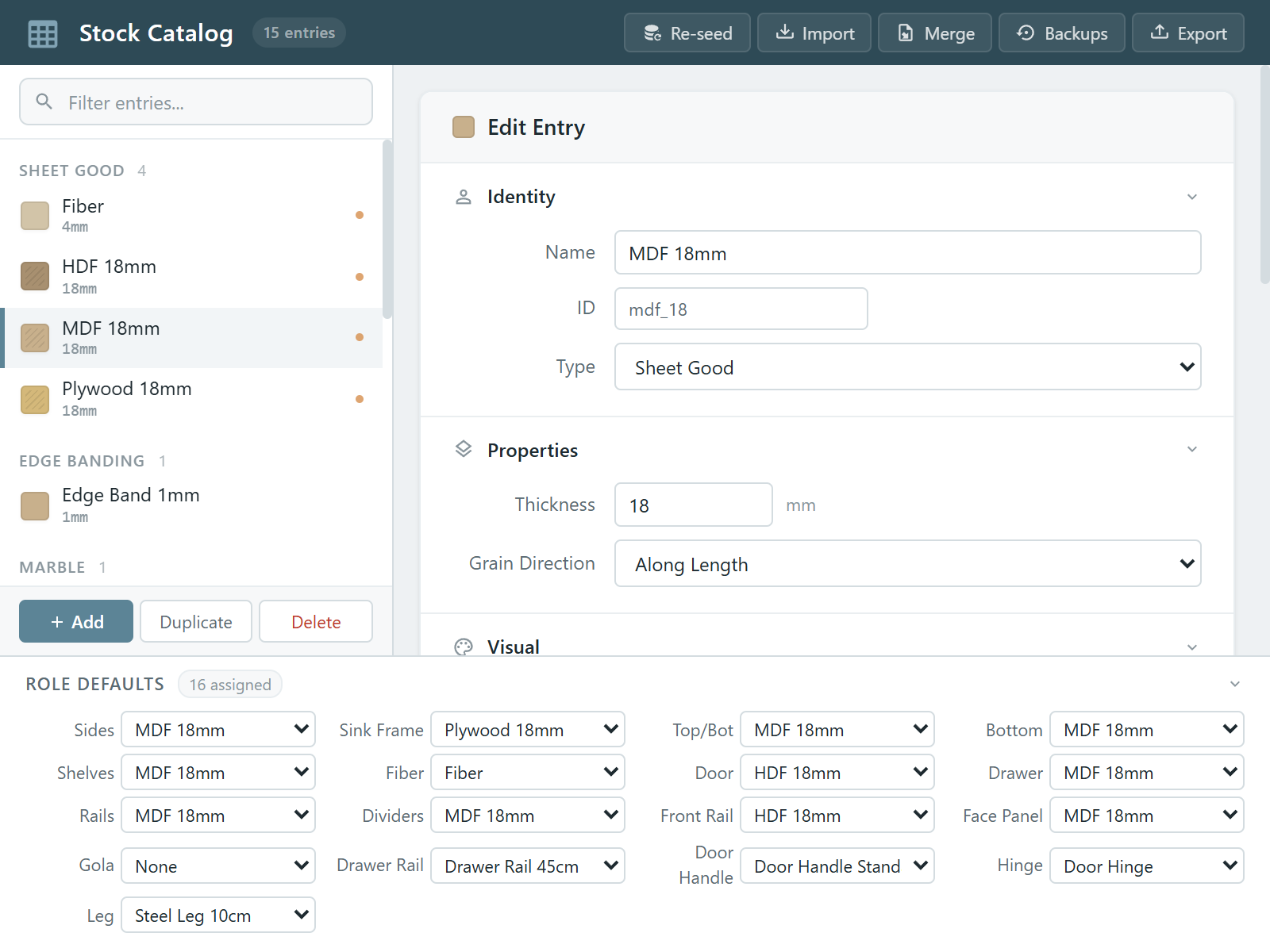
It is already populated. Cabybara ships fifteen entries, grouped by type in the left list:
- Sheet Good: MDF 18mm, HDF 18mm, Plywood 18mm, and Fiber, the thin 4 mm board for back panels.
- Hardware: two steel legs (10 cm and 5 cm), a door hinge, drawer rails from 25 to 45 cm, and a door handle. Each carries a Length, which is what sizes the hardware a cabinet generates.
- Marble 40mm and Edge Band 1mm.
Click MDF 18mm. The form shows what every stock carries: a thickness, a grain direction, one 2440 x 1220 sheet size, a cost Per m2 (IQD) and a Profit % margin for customer pricing. Now click Door Hinge: hardware is priced Per piece and has a Length instead of a thickness.
2. Make them yours
The shipped costs are starting values. Put in your real ones:
- Select MDF 18mm and set Per m2 (IQD) to what you pay. The hint under the field shows what that makes one sheet cost.
- Set Profit % to the margin you want on carcass material. Blank means the global default from Settings.
- Save. An orange dot in the header marks unsaved edits until you do.
- Repeat for HDF 18mm (the door stock), Door Hinge and Steel Leg 10cm.
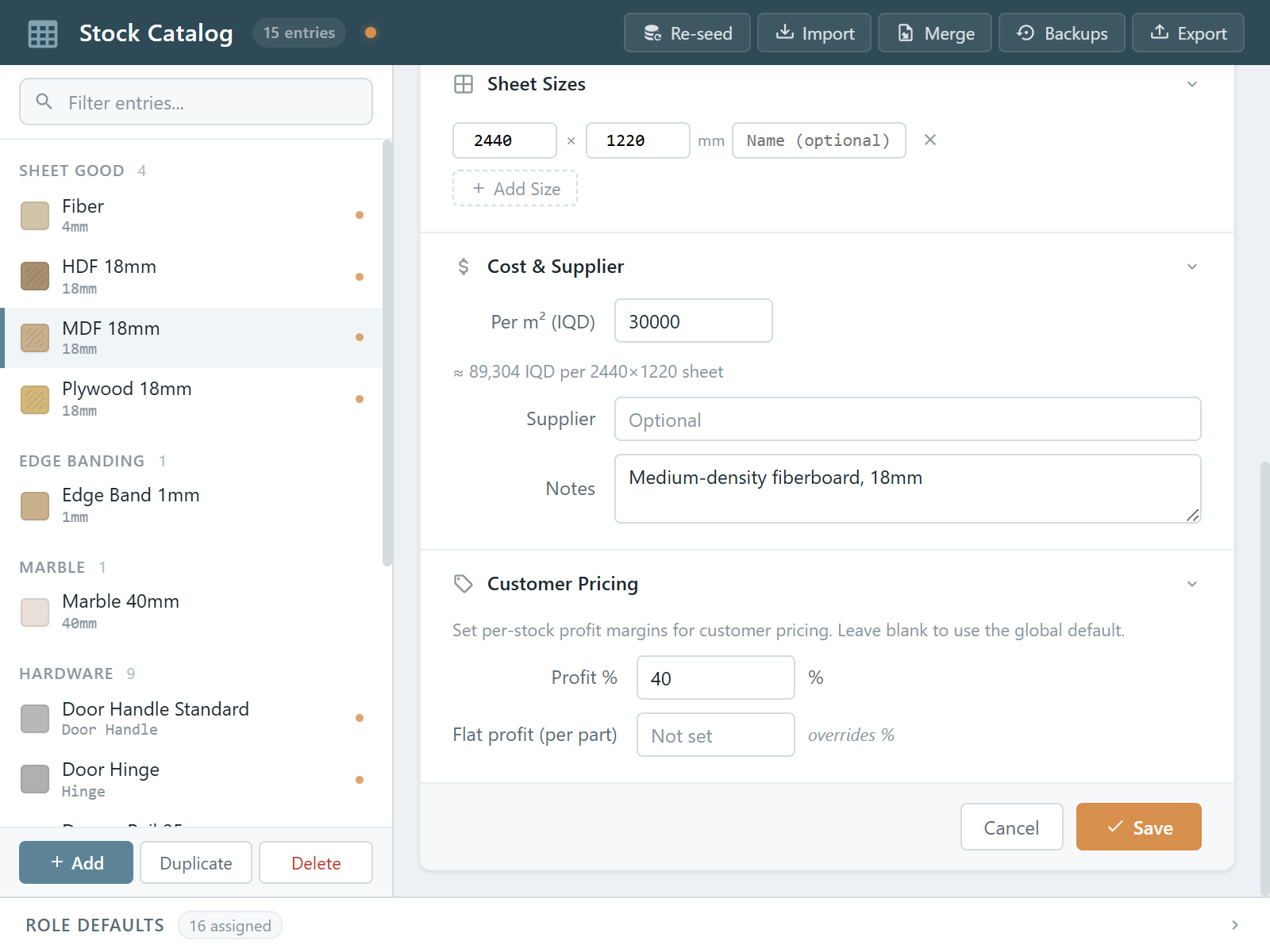
Whatever you change is kept: plugin updates only fill fields you left blank, never values you set. A few shipped hardware entries have no cost at all (the 5 cm leg and the shorter drawer rails), so a part using one shows as unpriced until you fill it in.
Checkpoint: MDF 18mm and HDF 18mm show your prices, and the orange dot is gone.
3. Read the role defaults
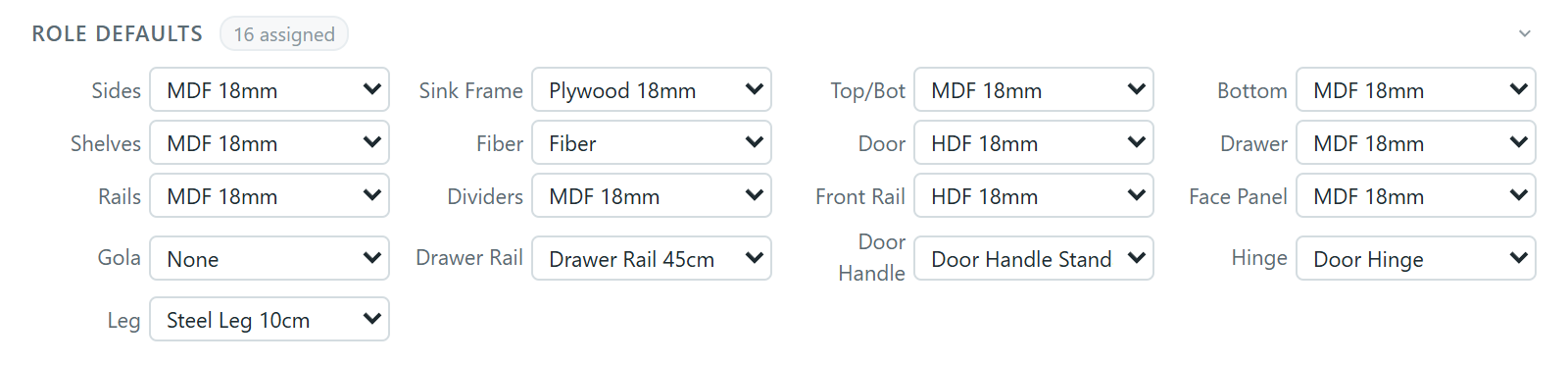
The Role Defaults panel sits at the bottom, open by default. Its header folds it away. One dropdown per part role says which stock a new cabinet gets: MDF 18mm for sides, bottoms, shelves and rails, Plywood 18mm as the Sink Frame that sink bases use instead, HDF 18mm for doors, Fiber for the back panel, Steel Leg 10cm for legs, Door Hinge for hinges and Drawer Rail 45cm for drawer rails. Entries used as a role default carry a small dot in the list.
Leave them as they are. They are why the cabinet dialog opens with every part already stocked in Lesson 4.
They are defaults, not locks. The cabinet dialog lets you override any row for one cabinet, and the Stock Painter and the Components Manager reassign panels that already exist. Lesson 5 shows both, and when a change needs no new stock at all.
What can go wrong
- A panel with no stock is invisible to nesting and carries no price. Role defaults are what make that a rare exception.
- The catalog is one file per computer, shared by all models. Use Export and Merge to carry it to a second machine instead of retyping it.
- Deleted a shipped entry by mistake? Re-seed brings the missing defaults back without touching anything you edited.
Every field, including the backup tools, is described in the Stock Catalog reference.
Next: Lay out the room.