Learn
Lesson 8: Nest the MDF and export
On this page
Goal: pack the carcass panels onto MDF sheets, including the offcuts lying around the shop, then hand the CNC its DXF files and print the sheet drawings and part labels from the same dialog.
Time: fifteen minutes, part of it the solver working.
Nesting needs two things from every panel: a stock and a stamped face. Both were set when the cabinets were generated. One run covers one stock. This lesson nests MDF 18mm, the one board this shop cuts itself; the HDF goes out as a list in Lesson 9.
1. A first run on full sheets
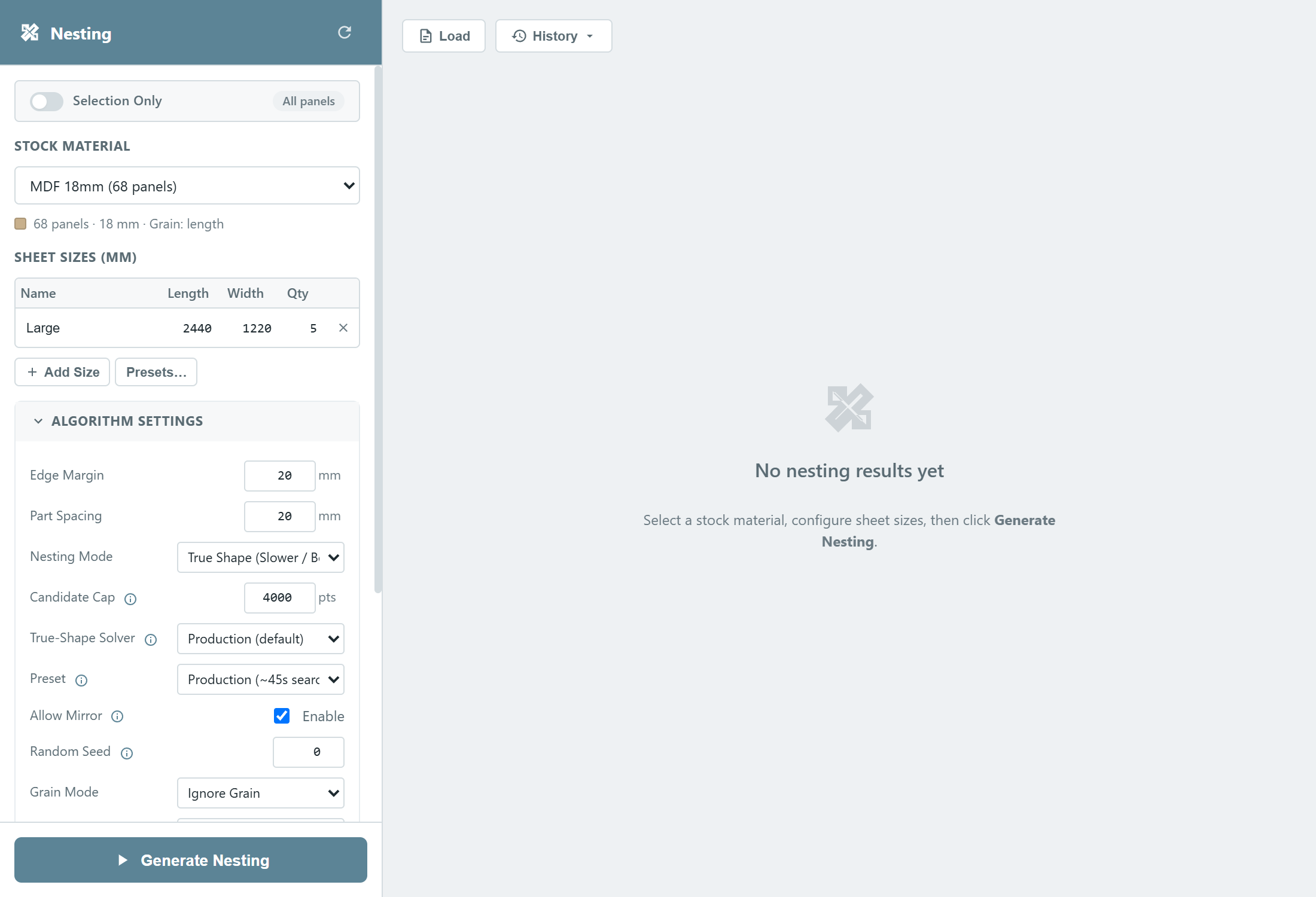
- Open Nesting and keep the scope at the entire model.
- Under Stock Material choose MDF 18mm. The line under it counts the panels in the run and shows the stock's thickness and grain.
- The sheet sizes table lists the sheets the run may use. It is
rebuilt from the stock's catalog sizes, so it shows one 2440 by 1220
row with a blank quantity, which means unlimited. Name the row
Largeand set Qty to5: the names follow the sheets onto the printouts and into the DXF file names, and the quantity caps how many the run may open. - Set Grain Mode to Ignore Grain. MDF 18mm ships with Along Length, so at the default Respect Per-Panel every carcass panel would be locked to that direction. This run holds only carcass parts, and this MDF has no real grain, so let them rotate. Notice the sheet table's Grain column disappears: with grain ignored, neither the panels' grain nor a row's own grain setting matters. Setting the stock's Grain Direction to None in the catalog makes this permanent.
- Leave the rest at its defaults: True Shape mode, the Production solver and preset, 20 mm edge margin and 20 mm part spacing. The spacing is the only gap the engine adds, so it must already include your saw kerf. The Label Template section decides the text drawn on each part in the layout and previews it as you type; the default is fine.
- Press Generate Nesting. The run reports its phase and elapsed time, and can be cancelled.
The stats bar reports 5 sheets, and fewer parts placed than the total. Below the sheets, an Unplaced Parts card lists what did not fit: five full sheets were not enough for 68 panels.
2. Add the offcuts and run again
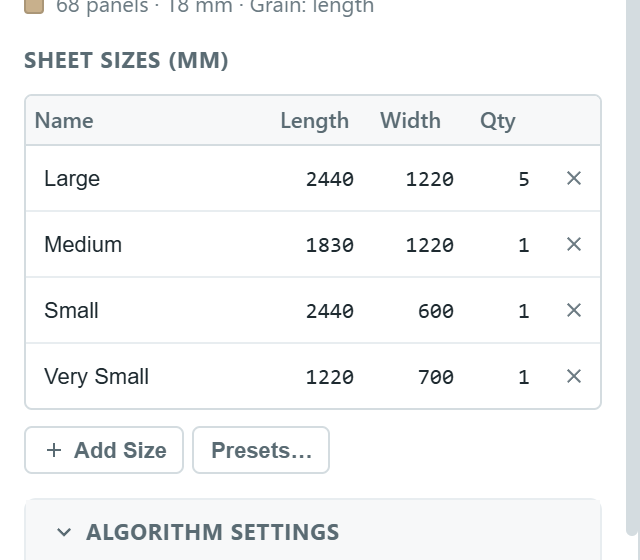
Instead of opening more full sheets, put the leftovers from earlier jobs to work. Press + Add Size three times and enter what is on the rack:
| Name | Length | Width | Qty |
|---|---|---|---|
| Large | 2440 | 1220 | 5 |
| Medium | 1830 | 1220 | 1 |
| Small | 2440 | 600 | 1 |
| Very Small | 1220 | 700 | 1 |
A run may draw on any mix of sizes, and each row stops at its quantity, so an offcut is never used twice. Presets stores sizes you keep on hand for one-click insertion; a preset keeps the name and size but not the quantity, so a row inserted from one arrives unlimited.
Press Generate Nesting again. This run may take longer, since the solver has more shapes to try.
Checkpoint: the stats bar reads 8 sheets and 68 of 68 placed, and no Unplaced Parts card appears. The true efficiency lands around 87 percent.
3. Read the results
Each sheet gets a card named after its row, with its own efficiency and part count. On the layout, parts are colored by cabinet, outlined orange or blue for their outside or inside face, and overlaid with their machining, so the fiber grooves on the sides are visible. Hover a part for its details; click it to select and zoom it in SketchUp.
Every card carries four buttons: Preview and DXF for that sheet, Labels for its parts, and Print. Above the sheets, Manual Edit opens the layout for rearranging by hand, with overlaps and spacing checked as you drag. With Auto-save Results on, every run is written to a file, and History reopens one together with the settings it ran with; Save and Load do the same by hand.
4. Export the DXF files
Press Preview on a sheet card first: it builds the real DXF and draws it with a checkbox per layer, so you can confirm that part outlines, grooves and labels land on the right layers. Curved edges preview as straight chords but export as true arcs.
Then choose Export DXF. Export Individual Sheets writes one file per sheet into a folder you pick, named after the stock and the sheet's name. Export Combined DXF writes every sheet into one file, laid out in a grid with a title above each size group. Either way the geometry is split across layers, so your CAM software can toolpath the outlines, grooves and holes separately. Your CAM software takes it from here: the DXF is the drawing, not the machine program.
Three sidebar settings shape the file, and the defaults suit most shops: DXF Profile picks the drawing format your CAM software reads, DXF Rotation turns the sheet the way the machine expects, and Placement Origin sets which corner the coordinates start from.
5. Print the sheets and the labels
Print Sheets opens the print settings: one sheet per page or an overview grid, with toggles for labels, grain hatching and the sheet header. Open Print Preview builds the A4 pages in your browser; press Ctrl+P there. The operator gets black-on-white outlines with each part's label, and each page is headed with the sheet's name and size.
Print All Labels opens the Label Printer with every part of the run, numbered across the whole job, and a sheet header page before each sheet's labels. Pick the Standard 62x29 preset (cabinet and part name, dimensions, stock, grain, face and a QR code), press Preview to see the real codes, then Print. Set the browser's print scale to 100% and turn off its headers and footers, or the labels come out the wrong size.
Checkpoint: a folder holding one DXF per sheet, the sheet drawings, and a label per part.
What can go wrong
- A saved result is a snapshot of the model at that moment. After you change panels, re-nest rather than exporting an old result.
- After a manual edit, exports and labels use the edited layout, but nothing is re-exported for you: run the export again.
- Settings are saved when you press Generate Nesting. Refresh or a scope change before that reloads the last saved values, and the sheet table is rebuilt whenever you choose a stock, so pick the stock first and edit the rows after.
- Cancelling a run shows the partial layout placed so far; inspect it, but regenerate before cutting.
References: Nesting, Nesting Settings, DXF Export and Sheet Printing, Manual Editor, Label Printer.
Next: The production report.